
FAQ - Frequently Asked Questions
Ad: Picture upload, edit, rotate, crop, blur face, and change the order of pictures.
Get help with uploading pictures, editing them, rotating, cropping, blurring faces, and rearranging the order with ease.
- See text and image guide below.
- See video guide at the bottom of the page for even more help.
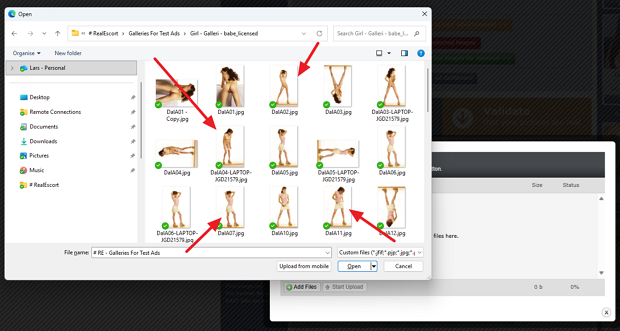
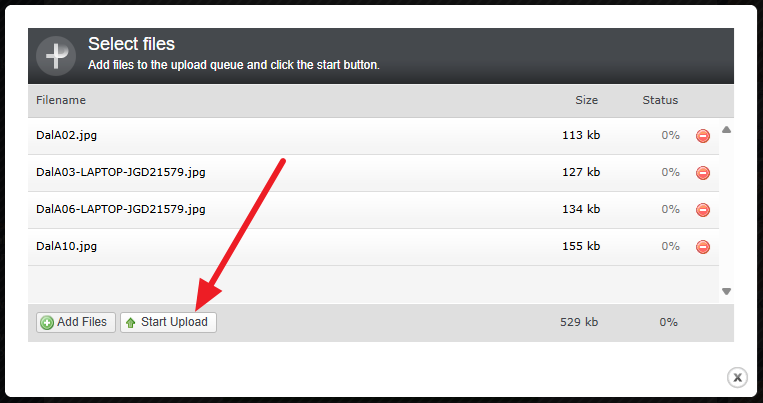
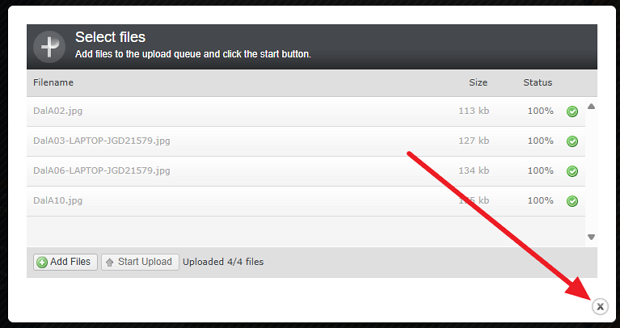
Step 1: Image Upload
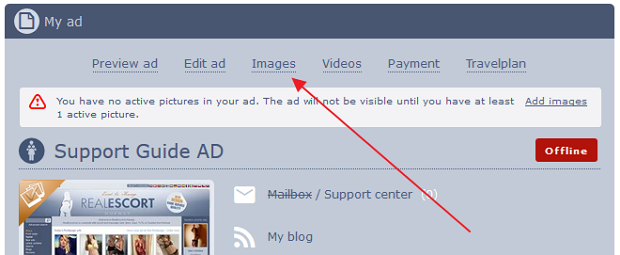
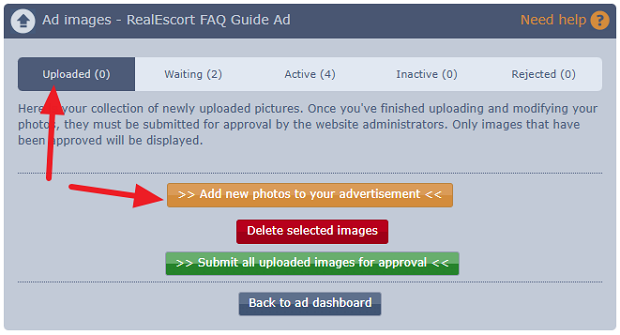
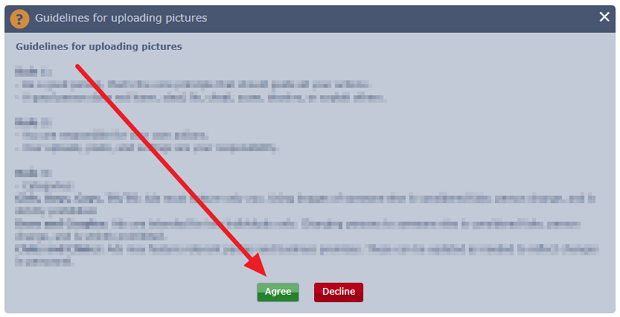
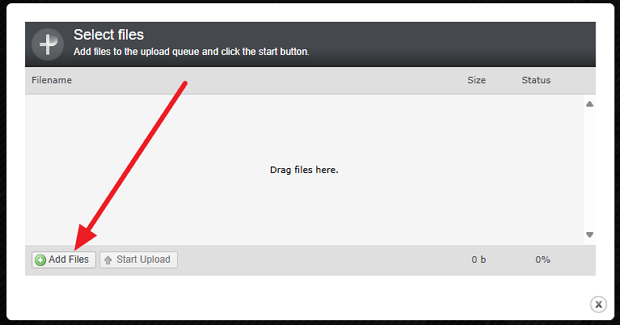
Phone/Tablet/Android/Apple:
- You can select many images and click open.
- After selecting images in one folder, you can move to another folder and select additional images before starting the upload.
Computer:
- You can select multiple images by drawing a box around them with your mouse.
- Press and hold CTRL key on your keyboard while clicking on images.
Step 2: Picture Editing
(Skip to step 3 if you don't need to edit, crop, blur face, or rotate your picture)
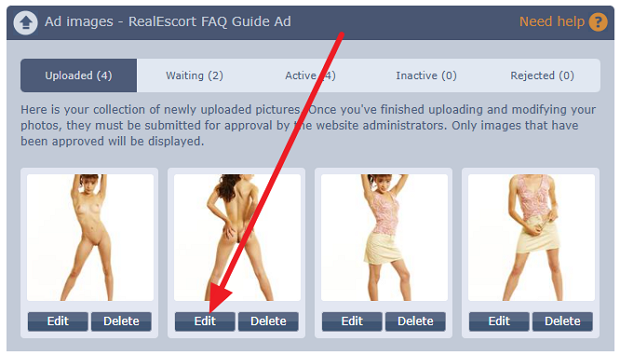
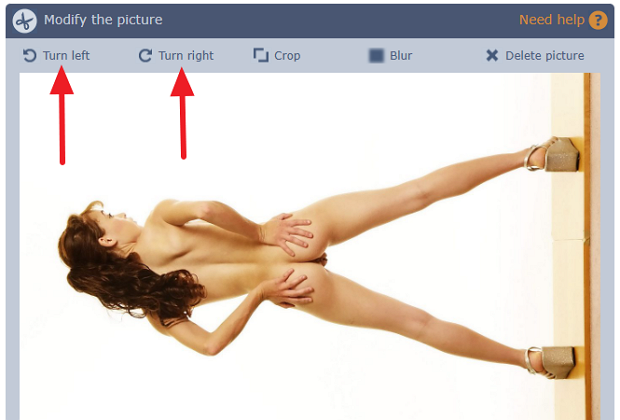
- Rotation: Click the rotate button either to the left or right.
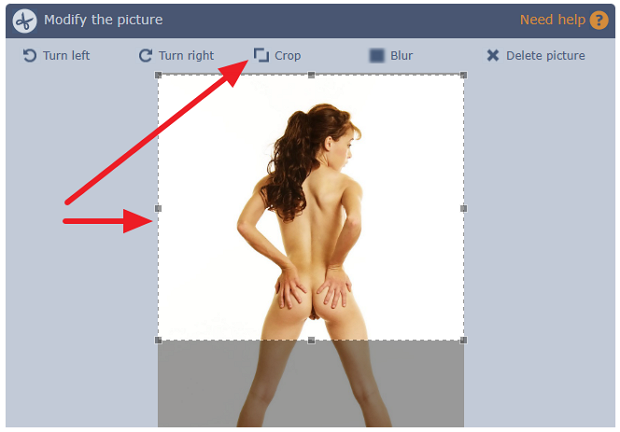
- Cropping: Select the portion of the image you want to crop, then click the Crop button.
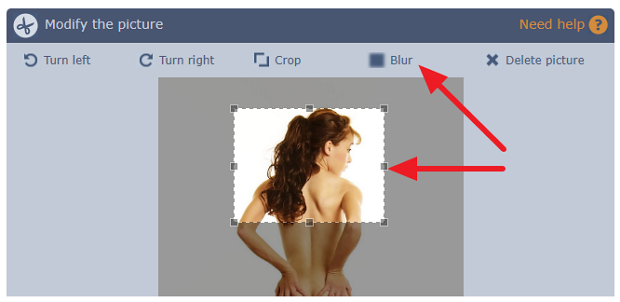
- Blurring: Select the portion of the image you want to blur, then click the Blur button.
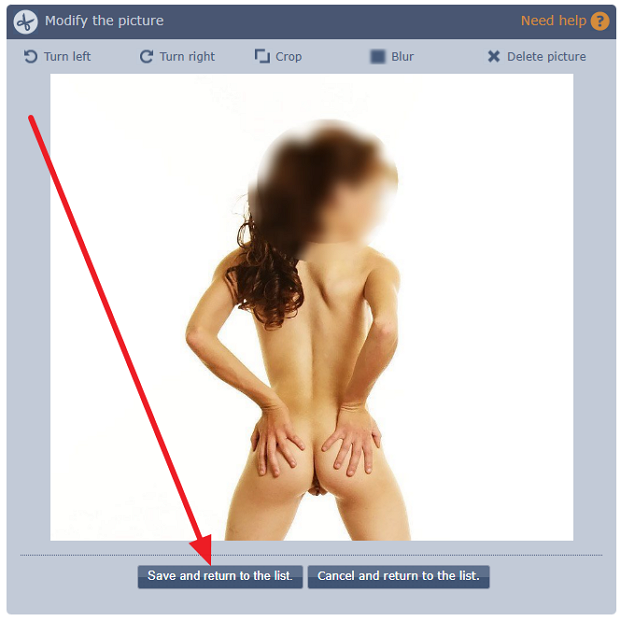
- Once done, click save and return to the image list.
Step 3: Submit for Approval
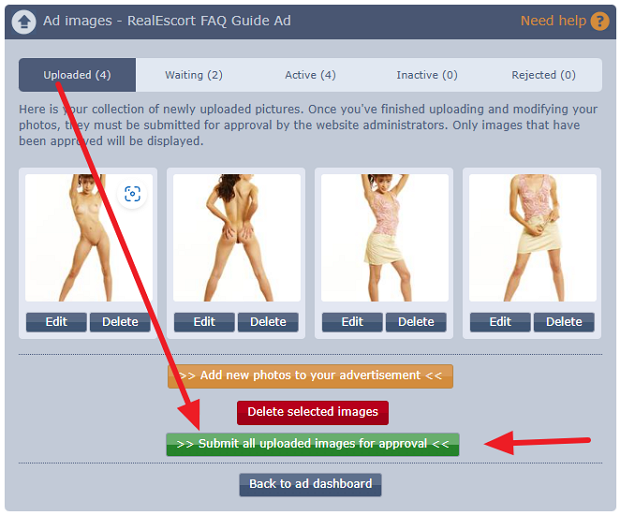
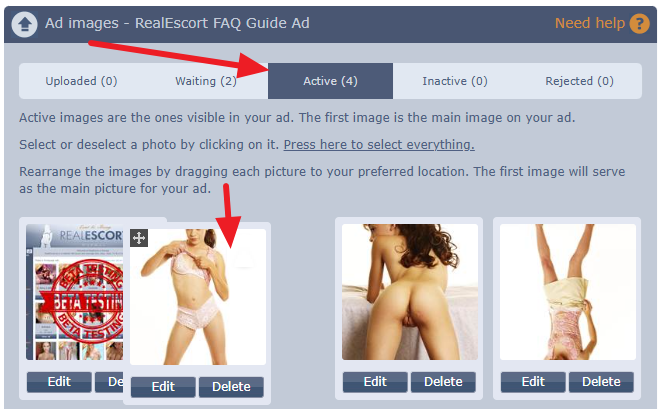
Step 4: Rearrange The Order of Images
(once pictures are approved and active you can rearrange the order of them)
- You can rearrange the order of your pictures in the Active images tab.
- Click and hold the image, then drag it to the desired position.
- The first picture will be your primary ad picture.
Video Guides:
Uploading pictures to your ad
FAQ - How to upload images V2
Editing your pictures (rotation, cropping, face blurring)
FAQ - How to edit images V2
Changing the order of pictures
FAQ - How to change order of pictures V2
- See text and image guide below.
- See video guide at the bottom of the page for even more help.
Step 1: Image Upload
Phone/Tablet/Android/Apple:
- You can select many images and click open.
- After selecting images in one folder, you can move to another folder and select additional images before starting the upload.
Computer:
- You can select multiple images by drawing a box around them with your mouse.
- Press and hold CTRL key on your keyboard while clicking on images.
Step 2: Picture Editing
(Skip to step 3 if you don't need to edit, crop, blur face, or rotate your picture)
- Rotation: Click the rotate button either to the left or right.
- Cropping: Select the portion of the image you want to crop, then click the Crop button.
- Blurring: Select the portion of the image you want to blur, then click the Blur button.
- Once done, click save and return to the image list.
Step 3: Submit for Approval
Step 4: Rearrange The Order of Images
(once pictures are approved and active you can rearrange the order of them)
- You can rearrange the order of your pictures in the Active images tab.
- Click and hold the image, then drag it to the desired position.
- The first picture will be your primary ad picture.
Video Guides:
Uploading pictures to your ad
FAQ - How to upload images V2
Editing your pictures (rotation, cropping, face blurring)
FAQ - How to edit images V2
Changing the order of pictures
FAQ - How to change order of pictures V2